
New Open source, for Android
What’s new stays in front. The rest steps back.
Chronotif shows your notifications in the order they arrived. Everything since you last checked appears in full under New. What you’ve already seen folds into quiet per-app stacks under Earlier, still there when you need it.
- Free & open source, GPL-3.0
- Android 11 or newer
- ~140 KB APK
- Notifications stay on your phone
Downloads chronotif-v0.2.2.apk, the newest pre-release.
Release notes & checksum ·
All releases
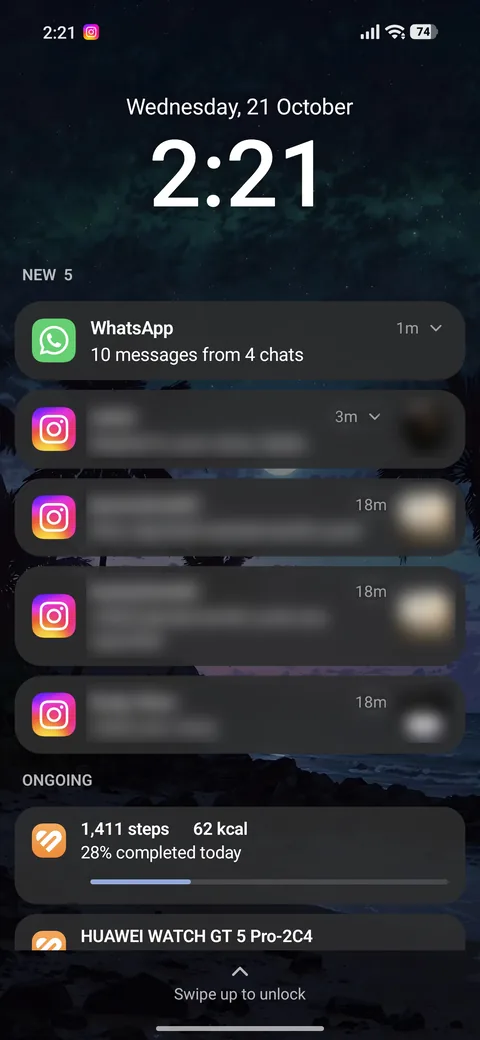
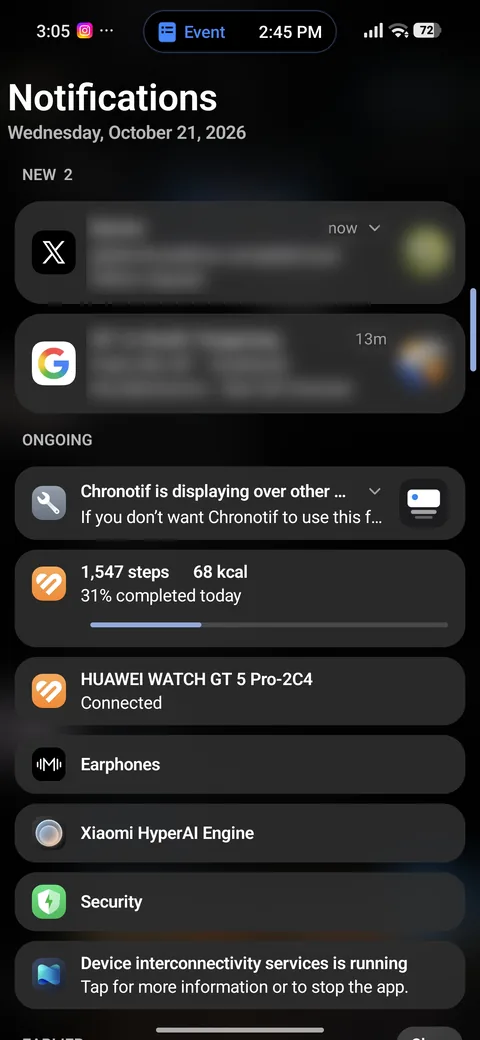
On a real phone
The same calm order, in the panel and on the lock screen.
-
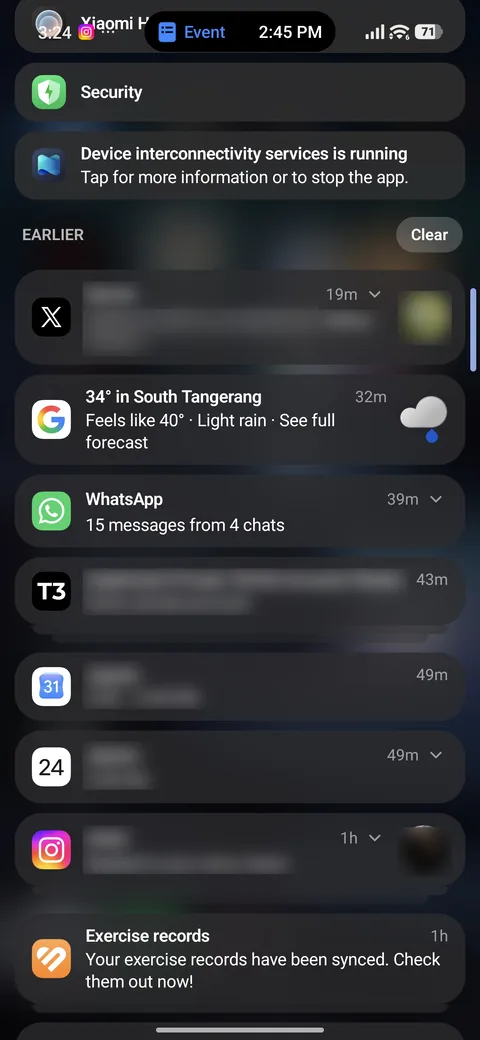
The panel. Opened from the edge handle or the Quick Settings tile. Everything you’ve seen stays in the order it arrived, across every app. -
The lock screen. When the screen turns on, what’s new is up front, newest first, shown over the still-locked keyguard. -
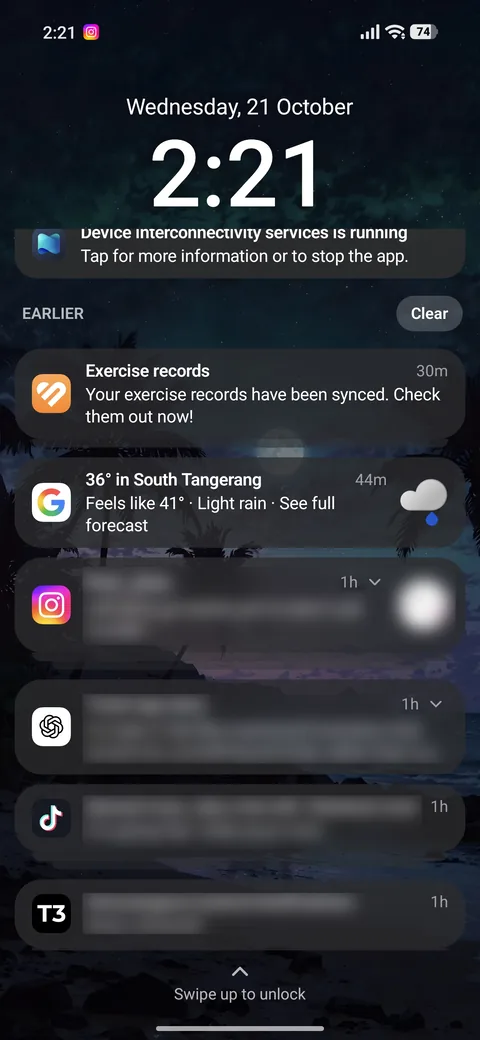
Earlier, one tap away. What you’ve already seen folds behind an “N earlier” pill. Tap it and it opens, still newest first.
Screenshots from a Xiaomi 17T Pro in dark mode. Other people’s names, messages and photos are blurred.
How it works
Sorted by your attention, not by app.
- New
- Everything that arrived since your last check, newest first, shown in full. This is the only part that asks for your attention.
- Ongoing
- Media, navigation, downloads and other ongoing work sit compactly below New. They’re never counted as new.
- Earlier
- What you’ve already seen. It stays accessible but recedes: smaller, dimmer, and folded into one stack per app. Clear sweeps it all away.
What counts as a check
- The panel was open for at least 1.5 seconds, or you interacted with it. When it closes, everything it showed moves to Earlier.
- On the lock screen, a glance isn’t enough. Notifications move to Earlier when you unlock after they were shown.
- A notification only comes back to New when it brings something new, like another message in an existing chat. Silent refreshes and progress updates don’t.
Getting there
One gesture away, wherever you are.
-
Edge handle
A slim pill on the edge of the screen. Tap it, or swipe it down or inward, to open the panel. It takes on your accent colour while something is new. Choose the side and position, or hide it in landscape.
-
Quick Settings tile
Add the Chronotif tile to Quick Settings. It shows how many notifications are new and opens the panel in one tap.
-
Lock-screen view optional
Shown over the locked keyguard when the screen turns on: Off, When something is new (the default), or Whenever there are notifications.
Real notifications, not copies.
Chronotif works with the actual notifications, so taps, actions and replies go straight to the app that posted them.
- Open
- Tap a notification.
- Dismiss
- Swipe sideways. Swiping a collapsed stack dismisses the whole stack.
- Expand
- Chevron or long-press, for full text, conversation history, pictures, progress and the app’s actions.
- Reply
- Expand, tap the reply action, type and send without leaving the panel.
Privacy
Your notifications never leave your phone.
Chronotif reads some of the most private things on your device, so it’s built to keep them there. You don’t have to take our word for it: the source is on GitHub.
-
Notifications never leave
No accounts, analytics, crash reporters or backend. Your notifications, settings and identifiers are never sent anywhere.
-
Almost nothing stored
Notifications are mirrored in memory only. The time of your last check and your settings are the only things saved, in app-private storage excluded from backups.
-
Lock-screen rules respected
Follows Android’s lock-screen settings. Secret notifications aren’t shown, private ones are redacted when your settings say so, and opening, actions and replies always go through the system unlock first.
-
Light by design
No foreground service, wakelocks, alarms or polling. It responds to system events, and has zero third-party dependencies.
-
Updates are opt-in
The only network code is an optional update check, off by default. Once a day, or when you tap Check for updates, it reads the public release list on GitHub and downloads the new APK. The request includes only the app’s version, though like any download, GitHub sees your IP address.
This website has no cookies, analytics or third-party requests either.
Install
A few minutes of setup. Then you never need to open the app again.
-
Download the APK
Get
chronotif-v0.2.2.apkfrom its GitHub release (a.sha256file is alongside if you want to verify it) and open it. If asked, allow your browser or file manager to install unknown apps. -
Grant notification access
Lets Chronotif read, open, dismiss and act on your notifications. On Android 13 and newer, the first try is blocked for apps installed outside the Play Store: you’ll see
App was denied access
or a greyed-out toggle. That’s expected.- Press Close, then open Settings → Apps → Chronotif.
- Tap ⋮ (top right) → Allow restricted settings, and confirm. On HyperOS it’s a switch instead: Advanced settings → Allow restricted settings, further down the same page.
- Return to Chronotif and tap Grant again. The toggle now works.
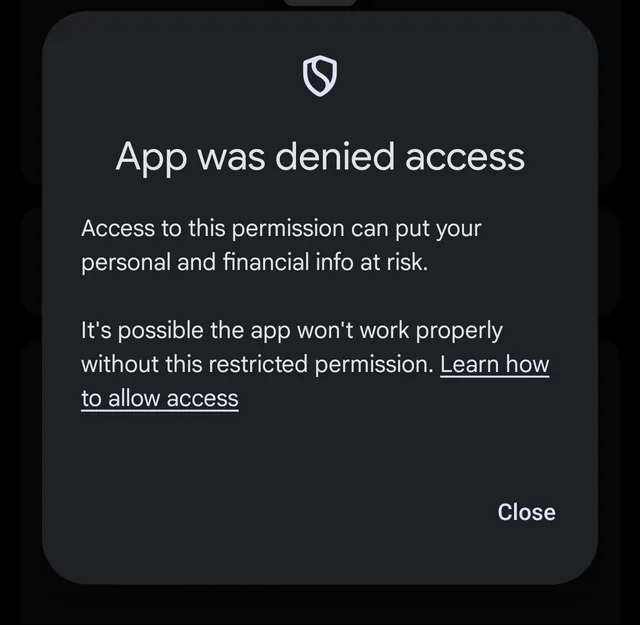
The first try. Expected; press Close. 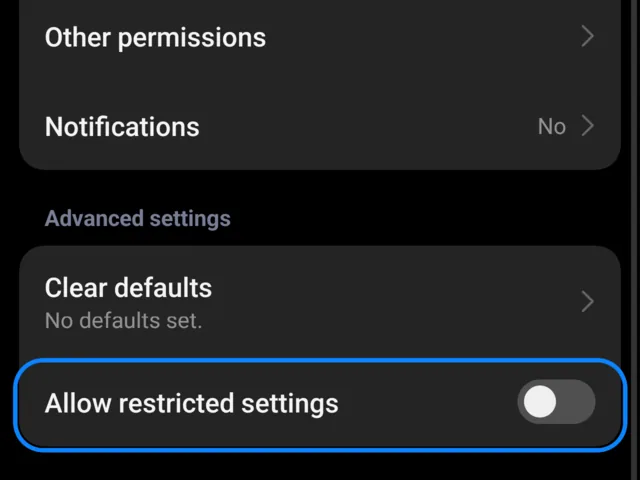
On HyperOS, the switch in App info. -
Allow display over other apps
Needed for the edge handle and the lock-screen view.
-
Add the tile optional
Add the Chronotif tile to Quick Settings. On Android 13 and newer, setup has a button that does it for you.
-
Turn on updates optional
In Updates, switch on Update automatically. If you also allow Install unknown apps for Chronotif (Android 12+), updates install without asking; otherwise a notification asks you to confirm each one.
FAQ
Questions, answered.
Which phones and Android versions does it work on?
Android 11 or newer. The setup notes and screenshots come from Xiaomi phones (Poco X3 NFC and Xiaomi 17T Pro), and setup includes shortcuts for Xiaomi’s extra permissions. Other devices are less tested so far. If something doesn’t work on yours, open an issue with your device and Android version.
Is it on Google Play?
Not currently. Chronotif is distributed as an APK on GitHub Releases, or you can build it from source.
How do updates work?
Turn on Update automatically and Chronotif checks GitHub Releases once a day.
When there’s a newer version, it downloads the APK, verifies it against the release’s
.sha256 file and installs it. Check for updates does the same on
demand, and you can always install a newer APK from Releases by hand. Android only
accepts an update signed with the same key as the installed app.
Coming from v0.1.0? It has no updater and used a temporary signing key, so uninstall it once and install the new version.
Does it replace the system notification shade?
No. Android doesn’t let a third-party app replace the system shade, so Chronotif works alongside it. Swiping down from the top still opens the system shade, and heads-up banners are still the system’s. Open Chronotif with the edge handle or the Quick Settings tile instead.
How does it work with the lock screen?
The lock-screen view is shown on top of the system lock screen, which stays locked underneath. You may briefly see the system lock screen as the screen turns on. Tap outside a notification or swipe up, then use your fingerprint, face or PIN to unlock; press back to reveal the system lock screen. Left untouched for 10 seconds, it steps aside so the screen turns off as quickly as it normally would. It follows Android’s lock-screen privacy settings, never covers a ringing call or an alarm, and doesn’t appear at all if Android’s show notifications on lock screen is off. You can also turn it off in Chronotif.
Why does Android say “App was denied access”?
From Android 13, notification access is a restricted setting for apps installed outside the Play Store. Allow it once from App info → ⋮ → Allow restricted settings (on HyperOS, the Allow restricted settings switch under Advanced settings in App info). It only appears after you’ve tried to enable the permission. See Install for the steps.
Why is there a “Chronotif is displaying over other apps” notification?
Stock Android posts it for any app that draws over other apps, which the edge handle does. Long-press the notification to turn it off.
Does every notification look exactly like it does in the system shade?
Mostly. Big text, inbox lines, conversations, pictures, progress and actions are supported. Notifications with fully custom layouts are rendered from their text, not pixel-for-pixel.
An app complains about an overlay. What can I do?
A few apps, mostly banking apps, refuse input while any overlay is on screen. Turn off the edge handle in Chronotif and use the Quick Settings tile instead.
Is it really free?
Yes. No ads, no in-app purchases and no paid features. Chronotif is free software under the GNU General Public License v3.0 or later: you can use, study, modify and share it. If donations open later, they’ll be optional and won’t unlock anything.